

Connect Momo Business through ChatGPT's plugin features or a Claude custom connector to use your business tools from a conversation. Sign in with your own Momo account, choose access, and give the assistant a specific task.
You can look up business information, prepare a call flow, or create a draft for a customer conversation. The available actions depend on the tools you connect and your Momo Business permissions.
What you are connecting
The connection uses MCP, a standard that lets an assistant work with another application's tools. Momo Business already provides the connection endpoint. You add it in your assistant's settings and approve access to your account.
This guide uses a custom connection by URL. Start with the account endpoint shown in the Momo Business connection documentation. For the main Momo Business service, use:
https://business.momo.tz/mcp
If your organization uses its own Momo Business address, copy that site's endpoint. For this remote connection, use a public HTTPS address reachable by the assistant's cloud service. Your local .test address will not work.
Connect from ChatGPT
For an eligible account, OpenAI's current instructions are:
- On ChatGPT's website, open Settings → Security and login and enable Developer mode.
- Visit Plugins, select +, and name the connection Momo Business. Add a short description, such as “Manage my Momo Business workspace.”
- Choose the public endpoint connection and enter your Momo Business
/mcpURL. - Create the connection, choose OAuth if asked for authentication, and complete Momo's sign-in and access-selection steps. Review the discovered tools.
- Start a new chat and select the Momo Business connection from the tools menu before making your request.
Developer mode depends on account eligibility and workspace policy. Follow OpenAI's current connection guide for the latest interface.
If the creation option is missing, ask your workspace administrator to check whether custom connections are allowed.
Connect from Claude
- Open Customize → Connectors in Claude.
- Select +, then Add custom connector. Name it Momo Business and enter the same
/mcpendpoint. - Add the connector and choose Connect when prompted. Complete the Momo Business sign-in and permissions screen.
- In a conversation, open the + menu, choose Connectors, and enable Momo Business.
For Team and Enterprise organizations, an owner first adds the web connector under Organization settings → Connectors. Members then connect it with their own accounts. See Claude's custom connector instructions for current availability and setup details.
Choose what your assistant can access
The sign-in happens on Momo Business. Select the business areas the assistant needs, such as calls, contacts, or message flows. Customer-conversation access and actions such as publishing, sending, spending, or deleting have separate controls. Only enable the actions you want this connection to perform.
Your own account permissions still apply. Connecting an assistant does not give it administrator access or make every action available. Use the sign-in flow to authorize the connection; keep passwords and connection tokens out of the conversation.
Give your assistant a useful first task
Start by asking what the connection can do:
“Using Momo Business, tell me which tools are available to this connection.”
Then try a focused request:
- Review your calls: “Show my recent calls and summarize the missed ones.”
- Prepare a call journey: “Create a draft welcome menu that routes sales and support calls. Show me the result before publishing.”
- Plan a WhatsApp flow: “Help me draft a customer enquiry flow that asks for a name and what help they need.”
For updates, identify the exact record and desired change. Read the tool result and check the affected item in Momo Business. A suggested answer alone does not mean an action ran; the required tool and permissions must be available.
Manage or disconnect the connection
Open Credentials & connections in Momo Business and select Connected apps to review your signed-in apps or disconnect one. Each person manages their own app connections there.
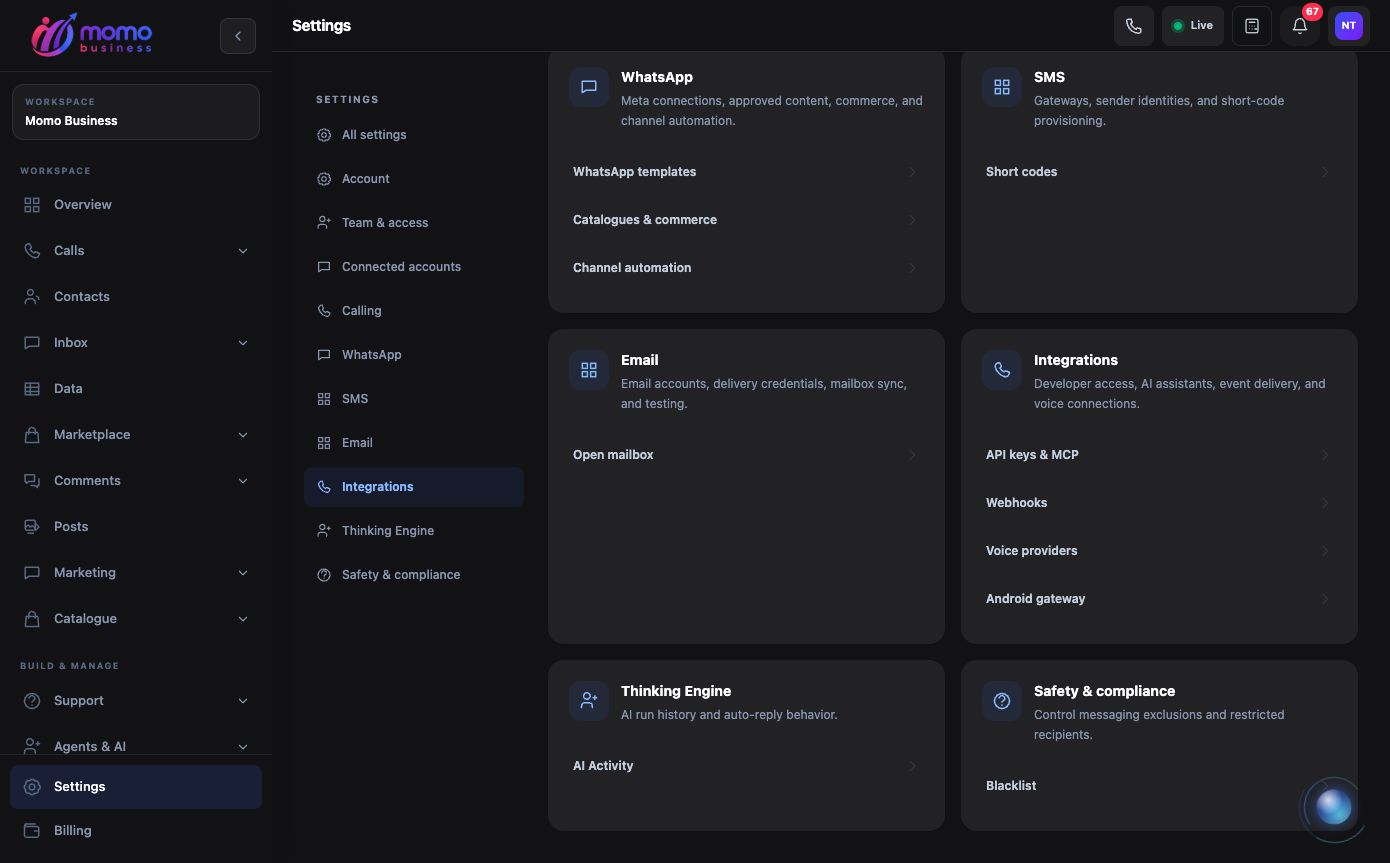
Find this page through Settings → Integrations → API keys & MCP. This screenshot shows the navigation, without displaying credentials. View full-size screenshot.
| Problem | What to check |
|---|---|
| Cannot connect | Public HTTPS address, complete /mcp path, and a finished sign-in flow |
| Connected but no action happens | Connector enabled in this chat and the relevant tool available |
| Permission denied | Your Momo role, selected business areas, and action permissions |
| Old tool list | Refresh connection metadata where supported, then start a new conversation |
For exact tool schemas and developer setup, use the MCP handbook.
Connection instructions reviewed on 8 September 2026 against the official OpenAI and Claude guides linked above. Menu labels and availability may change.
Make the first task easy to verify
Start with a narrow lookup, such as asking the assistant to find a named contact group and summarize its purpose. Check the returned names and identifiers in Momo Business before asking it to change anything. If two records have similar names, specify the exact group or reference.
For a writing task, separate preparation from execution: “Draft a collection reminder for this group and show the message and recipient count.” Review the wording and target before asking for the send. The assistant may need another permission or confirmation for an action even when the earlier lookup worked.
Ask it to report the resulting reference and state. A created campaign can still be processing; a payment request can still be waiting; a saved flow can still be unpublished. Open the relevant record in Momo Business when the outcome matters.
If a task stops midway, identify which steps completed before asking it to retry. Repeating the entire request can create another record or another customer message. Use the original reference when continuing a partly completed task.