
The Inbox gives your team a shared place to review customer messages, reply from a connected account and leave enough context for the next person. A useful routine is simple: understand the request, respond, record the next action and close the issue when it is resolved.
This guide follows a delivery enquiry from its first message to a completed follow-up.
Before you start
Open Settings → Connected accounts → All accounts at Connected accounts. Confirm that the account you intend to use is connected. Your role must allow inbox viewing and sending, and the account must be available to you. Managing assignments, notes and issue status requires additional access.
An account can be connected to the workspace without being visible to every team member. If it is missing from your inbox, ask the workspace owner to check both your permissions and account assignment.
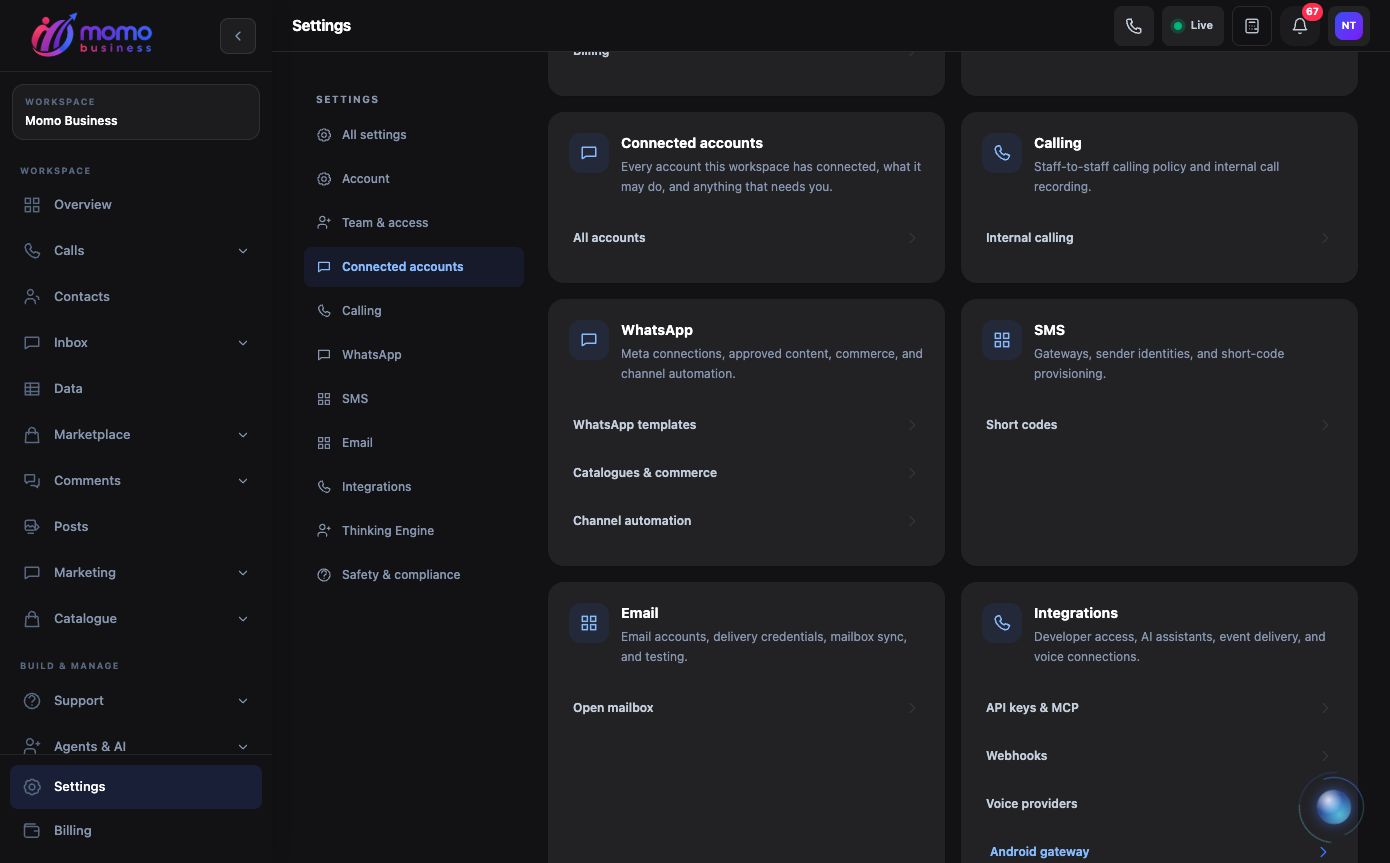
Start in Settings → Connected accounts → All accounts to check the channels available to your inbox. View full-size screenshot.
Work through a conversation
- Open Inbox → All inboxes at Inbox, or select a channel such as WhatsApp or SMS. Choose the account you need before replying, especially when your business has several numbers.
- Search for the customer's name or number and open the conversation. Read the recent exchange, existing notes and ownership information so the customer does not need to repeat the request.
- Write a clear response. Use Use template when an appropriate template is available, or Attach media when the channel supports the file you need. Check the account, recipient and message before sending.
- Review the message's status. A queued or sent message is not the same as confirmed delivery. If it fails, read the error before trying again.
- Record useful context in an internal note and assign the conversation when a colleague must continue the work. For example: “Warehouse checking order AB104; reply here when the collection time is confirmed.”
- Close the issue after the customer's request is addressed. Reopen it if further work is needed. Closing the chat panel alone does not complete the customer's issue.
You can save a customer to a contact group for later follow-up. The Contacts guide explains how to keep names, numbers and reusable fields consistent.
Respect the channel's available reply options
Different channels offer different message types and reply rules. When an ordinary WhatsApp reply is unavailable, the app may require an approved template for that account. Instagram, Messenger and TikTok also restrict when replies can be sent; follow the availability and explanation shown in the composer.
A template available for one WhatsApp account may not be usable from another. Voice messages, interactive choices and attachments are also channel dependent. If you were invited only to consult on a conversation, answer the internal question rather than assuming you can reply directly to the customer.
When something needs attention
- The conversation is missing: check the selected channel/account, search and your access.
- Replying is disabled: read the reply-window or capability notice and check your sending permission.
- A template is missing: confirm its approval, active status and account match.
- A message failed: inspect the result and connection before resending to avoid duplicate replies.
For repeat enquiries, start with a reliable manual response. Then use the WhatsApp flow guide to automate a small, tested part of the conversation.
Hand a conversation between a person and automation
Use the conversation's responder control when this particular customer needs a different approach. A person can take over a difficult enquiry with Manual, or choose an eligible AI agent or published flow for that chat. Check the saved responder before leaving the conversation.
This choice takes priority over the account default. Selecting Use account default removes the special choice so the account's configured responder applies again. Changing a chat's responder stops its previous flow; it does not erase the messages already exchanged.
For a delivery complaint, take manual control, read the last automated response, and leave a note describing what needs investigation. Keep that control until the team has resolved the exception. Returning the chat to automation should be a deliberate step, especially when a customer is still waiting for a personal answer.
For many chats requiring the same behavior, configure the account once in Accounts → Automations. See the automation assignment guide for account defaults, chat overrides, and reviewed AI drafts.