
A useful call review answers a specific operational question: which callers were missed, which problems remained unresolved, or whether a change in opening-hour coverage helped. A dashboard becomes misleading when the period, phone number or amount of analyzed material changes unnoticed between comparisons.
This tutorial builds a repeatable review in Business Analytics. You will set a clear scope, inspect the call journey, check the analysis behind the results and, when needed, request one focused analysis of existing transcripts. The worked example concerns collection calls at a repair workshop; the same method can support another business question.
Establish the scope and prerequisites
You need calls.business-analytics.view to open the dashboard. The numbers available depend on your access. Managing a number's scheduled AI metrics requires numbers.ai-metrics.manage. Transcript analysis also depends on the platform's AI metrics feature and available call transcripts; ordinary call records alone do not guarantee that AI findings exist.
- Write a one-sentence question before opening the dashboard. For example: “Did our new collection instructions reduce unresolved collection questions during the last complete week?” Record the number, dates, change being evaluated and person who will act on the findings.
- Open Business Analytics. Select the workshop's line under Number. Start with one line so a busy sales number cannot hide what happened to the collection line.
- Choose Custom under Time Range and enter a completed period in From and To. Use the same day boundaries for later reviews. Alternatively, use 24H, 7D or 30D for a rolling operational check, remembering that tomorrow's rolling window contains different calls.
- Set Interval deliberately. All includes analysis runs of different intervals and custom runs. Choose the relevant scheduled interval when you want to compare that scheduled series. Leave Search runs empty initially, enable Compare if useful, and select Apply.
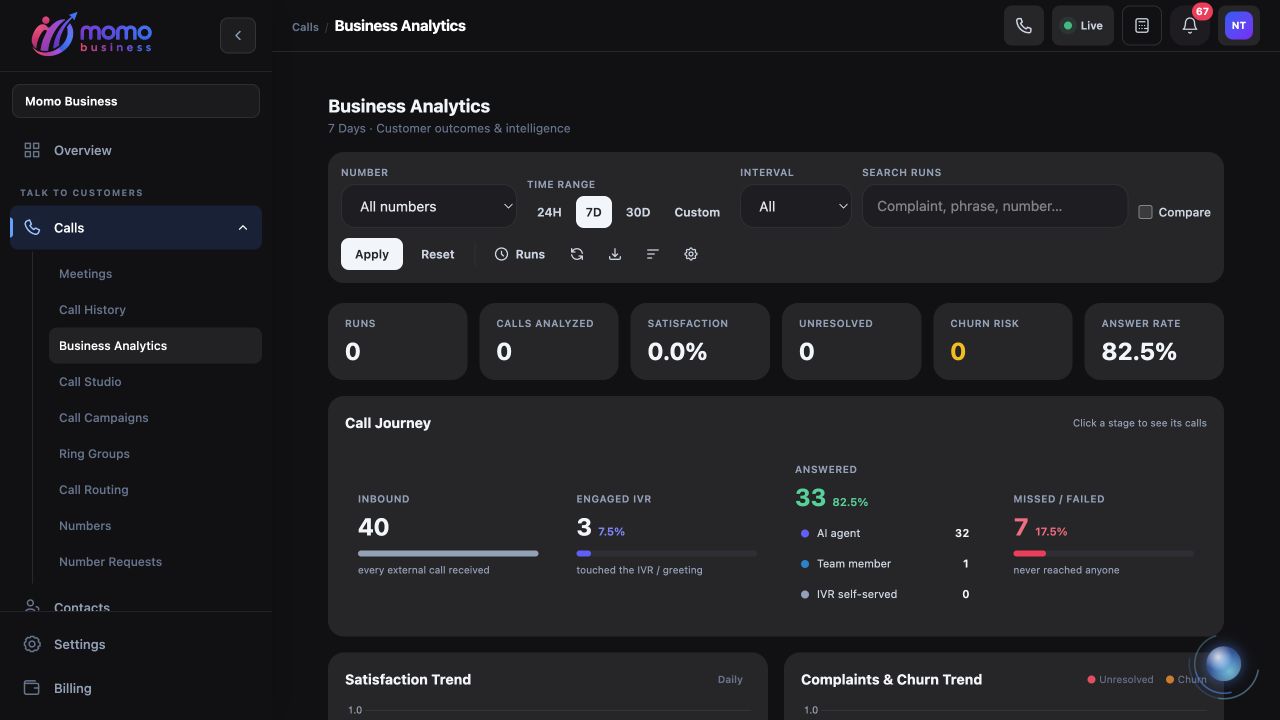
Keep the number, period and interval explicit so the next review measures a comparable scope.
Compare uses the preceding window of the same duration. It does not automatically account for a holiday, a promotion, different staffing or a changed analysis interval. Record those differences alongside the numbers instead of treating every increase as an effect of your operational change.
Understand what the headline cards count
- Review the visible cards and write down their scope before interpreting them. Runs counts completed analysis runs used for the selected view. Calls Analyzed sums the transcript counts recorded by those runs. It is not a count of unique customers or a guarantee that every incoming call was analyzed.
Custom analysis can cover calls that a scheduled run already analyzed. With both included, overlapping coverage can contribute more than once to analysis totals. For a recurring report, keep a consistent scheduled interval and inspect the underlying runs. Do not add custom-review counts to a weekly total and label the result “unique calls.”
Satisfaction, Unresolved and Churn Risk are signals derived from the analysis. Treat them as prompts for investigation, especially when only a small amount of transcript material is available. They are not automatically a customer survey or a verified count of customers who will leave. Review representative source calls before making a staffing or service-policy decision.
The dashboard's sections and target indicators can be configured. A missing section may be hidden by the shared layout, and a coloured target reflects its configured goal. Changing the layout or goals affects other people in the organization, so first understand the existing review convention.
Connect a chart to actual calls
- Inspect the call journey when that section is visible. It uses call records and events to show stages such as incoming calls, IVR engagement, answered calls and missed or failed calls. This is different evidence from transcript-based AI analysis.
- Select a journey stage to open its call list, then inspect a relevant call and its timeline. For missed calls, check when they arrived and what routing events occurred. For an answered call with an unresolved complaint, examine the available conversation evidence before deciding that the answer rate explains the problem.
For a simple training example, imagine one week had 40 incoming calls with 32 answered, and the next had 50 incoming with 42 answered. The answer rates are 80% and 84%. The answered count rose by ten, while the rate rose by four percentage points. Those are different statements. Neither establishes whether collection questions were resolved; that requires the call content and analysis.
- Use Search runs for a phrase such as “collection” when locating relevant analysis entries, then select Apply. Search narrows the run list by matching its stored information. It does not recalculate the headline cards, call journey or CSV export for only that phrase. Clear the search before handing the view to a colleague who expects an unfiltered run list.
Check whether analysis actually finished
- Select Runs in the toolbar. Running shows queued or analyzing work. All runs provides All, Completed and Failed filters. Match the number, run kind and analysis window rather than assuming the newest row belongs to the period on the dashboard.
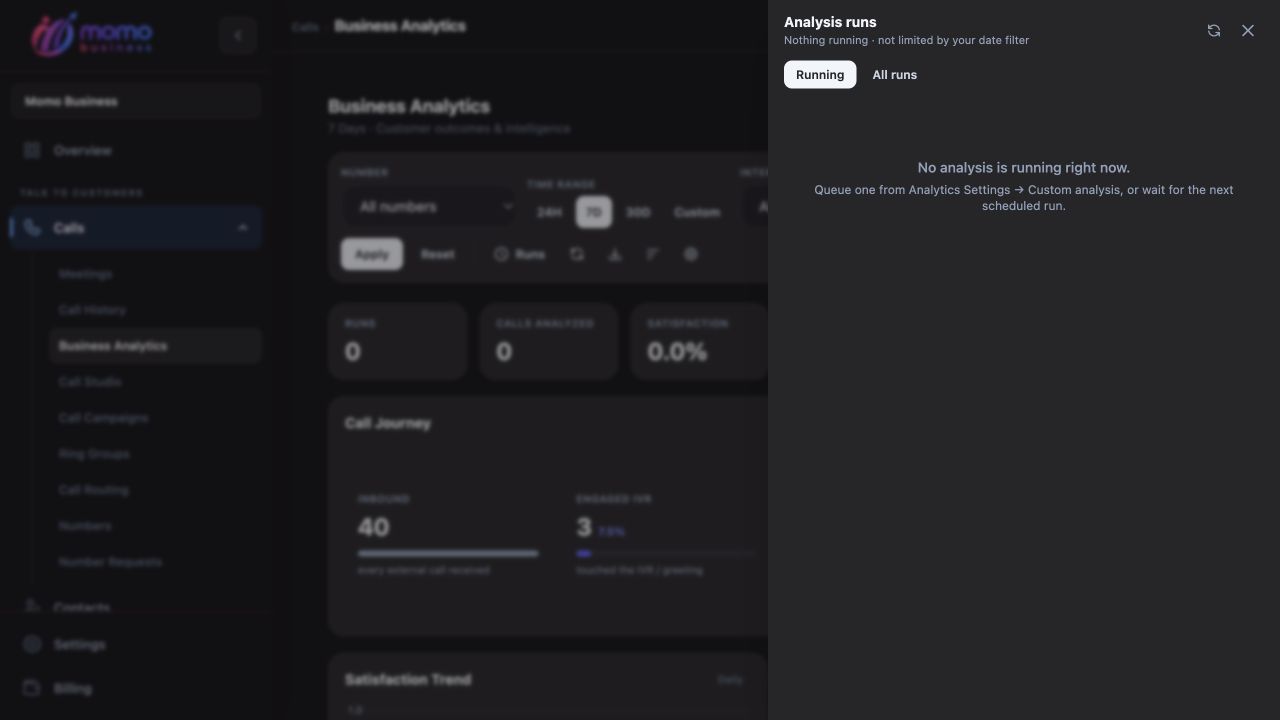
No analysis is running in this example. The tray is not limited by your date filter; use All runs to inspect completed and failed work.
A queued run has not produced completed findings. A failed run should lead you to its displayed error and the source material, not to an immediate sequence of new requests. If the analysis has just finished, use Refresh data and check the matching completed run. The activity panel has no general retry button.
If the dashboard is empty, first clear restrictive filters and verify number access. Then check for completed runs and available transcripts. Someone with the number-management permission can inspect Analytics settings → Numbers, including whether AI metrics are enabled, the interval and business context. Saving number settings can restart the incremental cursor for new conversations; changing them is not a substitute for a deliberate historical review.
Run one focused review of collection calls
Use custom analysis when the existing results do not answer your question. It analyzes existing transcripts and is billed like scheduled analysis. Decide the scope before submitting; pressing the action again starts additional work.
- Open Analytics settings, then Custom analysis when available. Select the workshop number and the same completed week. Set Max calls to Latest 25 for this first investigation. Leave Client number empty to inspect the line's selected calls, or enter a specific customer's international number when that is the actual question.
- Enter this original worked-example prompt:
Review collection-related questions in these workshop calls. Identify confusion about collection hours, the job reference and collection by another person. Distinguish an issue that staff resolved during the call from a question left open. Suggest one concrete improvement to the collection instructions. Use the transcript evidence and say when it is insufficient; do not assume a customer was satisfied just because the call ended.
Select Run custom analysis once. The cap selects up to the latest 25 eligible calls in the chosen scope; it is not a random sample or proof of what every caller experienced. The transcript count can also differ from the number of selected calls.
- Follow the new run in Runs. When it completes, inspect its findings and verify important examples against the available source calls. The expected outcome is a usable distinction between clarified questions and unresolved ones, with a proposed instruction change supported by evidence. A plausible paragraph without relevant evidence is not enough.
For example, if several reviewed calls show confusion about another person collecting a repair, a practical action is to add the authorization requirement to the collection message and assign someone to check the wording. If the evidence is mixed or absent, record that finding and review another appropriately scoped sample instead of claiming the instructions caused the problem.
Preserve a review that another person can check
Custom runs do not advance the scheduled analysis pipeline, but their results can appear alongside scheduled runs. Restore your chosen scheduled interval before the next routine comparison. Record any change in business context or coverage that could affect interpretation.
Use Export CSV to save the selected number, date and interval scope. The export contains one row per analysis run, including its kind, status, window, transcript count and analysis signals; it is not a full call-by-call export and does not apply the text search. Keep run identifiers when comparing files so overlapping custom work remains visible.
Finish the review with a concrete action, owner and next comparison period. Preserve the baseline scope, verify that the proposed change was implemented, and inspect both the next period's figures and relevant calls. This gives the team evidence it can revisit rather than a dashboard screenshot with no explanation of what was measured.