
Use Data to keep operational records that your team and workflows need: service requests, booking enquiries, stock checks, or outstanding jobs. Each table defines the fields a record can contain, so people and automations work with the same structure.
Start with one process that is currently tracked inconsistently. A small, well-defined table is easier to maintain than one that tries to describe the entire business.
Plan the record before the table
For a service-request register, decide what one row represents:
| Field | Suggested type | Purpose |
|---|---|---|
| Customer | Text | The name your team recognizes |
| Phone | Phone | A usable contact number |
| Request | Text | The work the customer needs |
| Stage | Status | New, In progress, or Complete |
| Due date | Date | When the team should follow up |
Choose required fields sparingly. Use a unique field for a value that really must not repeat, rather than making a customer's name unique. Plan field keys carefully because flows and API integrations refer to those keys.
Create and test a table
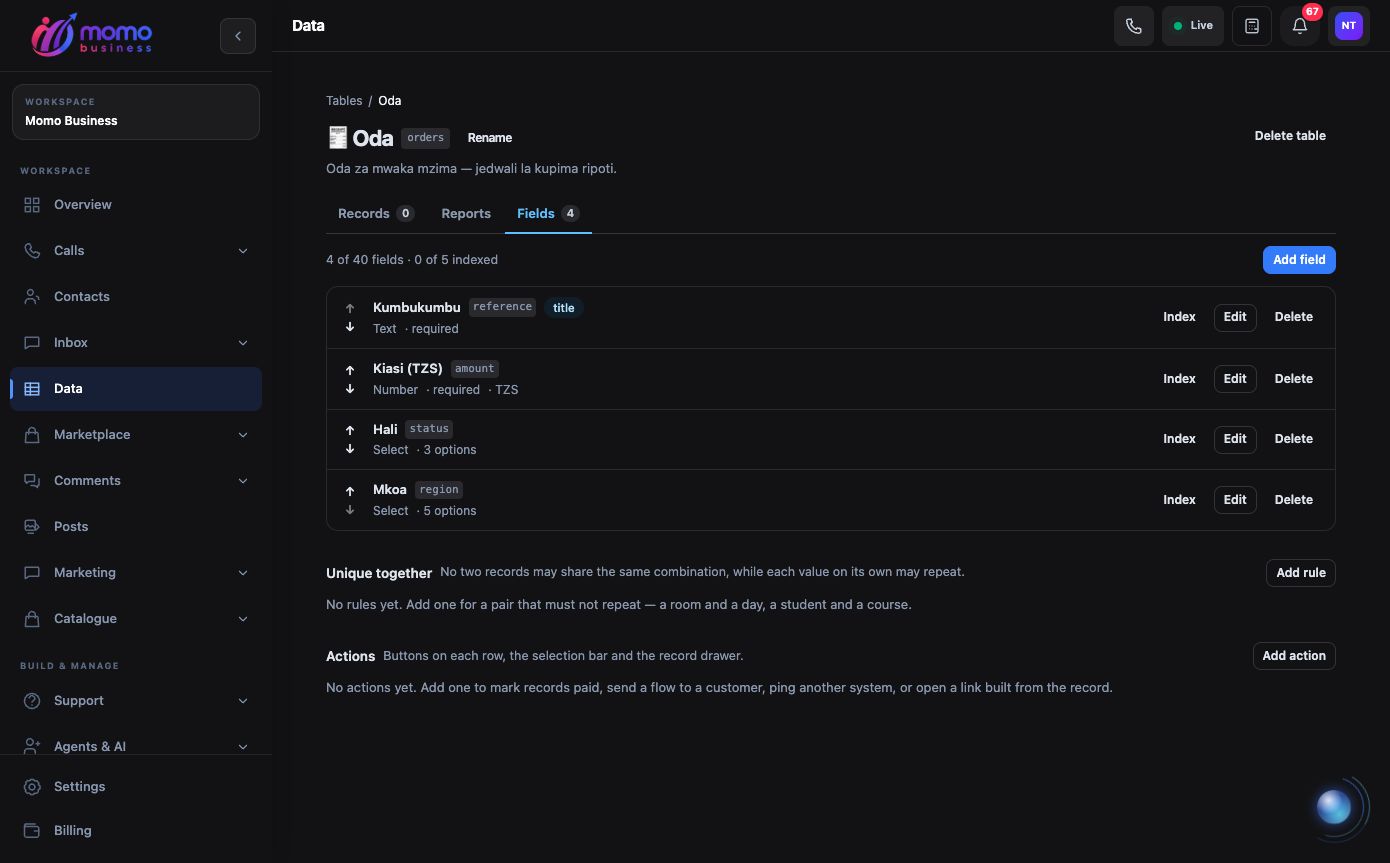
Fields in an existing sample orders table. Records, Reports and Fields share the same workspace. View full-size screenshot.
- Open Data and select New table. Give it a clear name and describe what belongs there.
- Open Fields → Add field. Select the type and configure its options, required status, and validation rules.
- For a status field, define the starting state and permitted transitions. This helps stop a request jumping directly to Complete when another step is required.
- Return to Records → Add record and enter a realistic test request. Try leaving a required value blank to check validation.
- Open the saved record, make an edit, and inspect its history. Confirm that the result is understandable to somebody who did not create it.
Creating tables and changing fields requires management access; editing records has its own permission. Table-specific access rules can further limit who can see or change a table. If a control is missing, ask the account owner to check your access.
Use records in daily work
Filter Records to find requests that need attention. The Reports tab summarizes the table and supports saved reports when your role allows them. Use groups on the Data home page to organize related tables without combining unrelated record types.
For recurring delivery of a table or report, configure an export schedule. Check the generated export and recipients first, then use the Automations guide to understand timing and recent outcomes.
Message flows can read and write tables when those actions are configured. Test with a sample record before attaching a write to a customer conversation. Creating a table does not automatically populate it from every call or message.
Keep the structure reliable
- A record will not save: check the field error, required values, permitted options, uniqueness, and status transition rules.
- A field cannot change type: the editor fixes an existing field's type. Plan a new field and a deliberate data transfer instead of assuming a label change converts stored values.
- A table or field limit is reached: review the usage shown in Data before adding more structure.
- A report looks incomplete: check filters, date range, and your table access.
For integration payloads, validation rules, and record updates, continue with the Data API guide.
Walk through a service request
Suppose a customer asks for a repair estimate. Create one record for that request, enter the customer and phone, describe the fault, and set Stage to New. Use a reference that identifies the request rather than the person: the same customer may need a second repair next month.
After someone checks the item, update the request and due date, then move it to In progress using the permitted transition. When the repair is finished, record the outcome before marking it Complete. Another colleague should be able to open the history and understand what changed without asking the original operator.
Try two test records with the same unique reference and confirm the second is rejected. Also test an incomplete record and a transition your process should forbid. These checks expose problems before a flow starts writing customer data.
Decide what belongs in each workspace
Keep a reusable customer audience in Contacts, an individual operational request in Data, and a customer conversation in Inbox. Include the relevant reference when connecting these records. A phone number alone may match several jobs; require the request reference when an automation updates one specific row.