
When an expected report, record or notification does not appear, immediately running the automation again can create a second problem. The original work might still be queued, a receiver might already have processed it, or a condition might have deliberately skipped it. Start by identifying where the work stopped.
This tutorial uses a daily operations-checklist record as a worked example. You will inspect the schedule, follow its record-created event and verify the actual row before deciding whether another run is appropriate. The same investigation order applies to messages, reports and other supported actions, but their final evidence lives in different places.
Identify which kind of automation owns the work
You need automations.view to inspect Automations and automations.manage to change subscriptions, edit schedules or use Run now. You also need access to the destination record, message or report if you will verify its outcome. A colleague who can view a schedule may still be unable to inspect the table it writes into.
- Open Automations and locate the relevant work. When this happens contains event subscriptions. On a rhythm contains recurring schedules. What fired lists recorded business events. These are related views, but they do not describe the same stage.
- Write down the expected result before changing anything: “One checklist row for today's opening shift,” for example. Record the approximate expected time, table or recipient, and rule name. This gives you something concrete to search for.
- Check the destination first. For the checklist, open Data, open the intended table and search its records for today's checklist key. For a message, inspect the Inbox; for a report, inspect Data exports and the delivery channel.
If the expected record exists, inspect its values and history. An error or missing notification elsewhere does not mean the record needs to be created again. Separate “the work is missing” from “the confirmation is missing.”
Read the event trail without overstating it
- Select What fired. Use Everything or an event-key filter such as
record.created. Match the time, subject identifier and actor to the operation you are investigating. - Read Acted on carefully. “Still going out” indicates that event distribution has not finished. A subscription count records that work was handed to matching subscriptions; it does not establish final message delivery or successful processing by an outside receiver.
The label “nothing was listening” can also appear when no subscription was counted as delivered. Investigate whether the relevant subscription was off, its condition did not match, or its action was skipped. Do not treat that label as a complete diagnosis by itself.
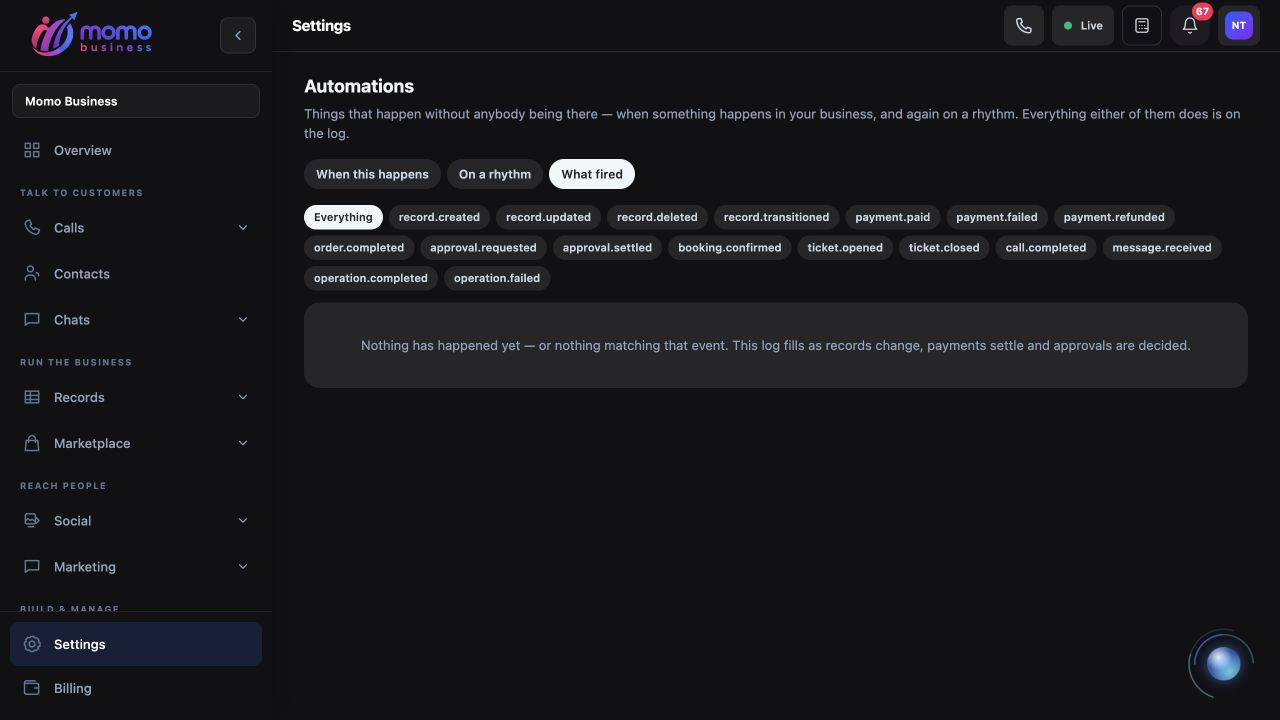
What fired is empty in this example. Check the active event filter and the actual destination before deciding whether missing work should run again.
The event table is a summary, not a replay console or a full payload inspector. When a condition depends on a nested field, use the automation API guide with an authorized integration or ask the person maintaining the integration to inspect the actual event payload. There is no general Replay event button on this page.
Inspect the rule that should have reacted
- Open When this happens, find the subscription and select Edit. Compare When, Do this, To, Only when and Extras with the intended outcome. Read its last error and firing counters before saving any changes.
For a subscription intended to react only to your checklist table, the condition might be:
{"all":[{"column":"table.slug","op":"equals","value":"opening-checklists"}]}
Use your table's actual slug. Its display name is not necessarily its slug. Also check the event choice: creating a record and changing its status publish different events. Saving an unchanged record is not a reliable way to manufacture a new change event.
If Do this starts a message flow, the event must identify an existing conversation. A flow ID alone is insufficient. When a record field contains that ID, Extras can specify its path, such as {"conversation_path":"record.conversation_id"}. Confirm the record really has the field and that it points to the intended conversation.
Repeated failures can switch a subscription off. Correct the cause before switching it on again. Re-enabling is not a promise that previous missed events will all replay. If the event reports that an automation was feeding itself, inspect rules that write back to the same records; changing a rule name does not remove the loop.
Work through a controlled checklist example
Use a separate practice table if you want to reproduce this investigation. The example writes a business record and can trigger subscriptions, so keep its table separate from customer-facing workflows.
- Create a table called Opening checklists in Data, using the Data table guide if needed. Add a required Text field with key
checklist_key, a Date fieldwork_date, and a required Text fieldresponsible_team. Makechecklist_keyunique when one checklist per day is the actual business rule, and check that its unique index is ready. Add and inspect one manual sample record first. - In On a rhythm, choose New schedule. Under Called, enter “Practice opening checklist”. Choose Write a record, set Every to one day and select the intended opening time. Under To, enter this table's ID, taken from its table URL. Use the ID, not its display name.
- Enter this object under Details, leave Switched on unchecked while preparing the test, and save:
{"record":{"checklist_key":"opening-{{slot_date}}","work_date":"{{slot_date}}","responsible_team":"Opening team"}}
The placeholders use the run's date in the schedule's timezone. Check the displayed rhythm and account timezone rather than assuming it follows a travelling operator's laptop.
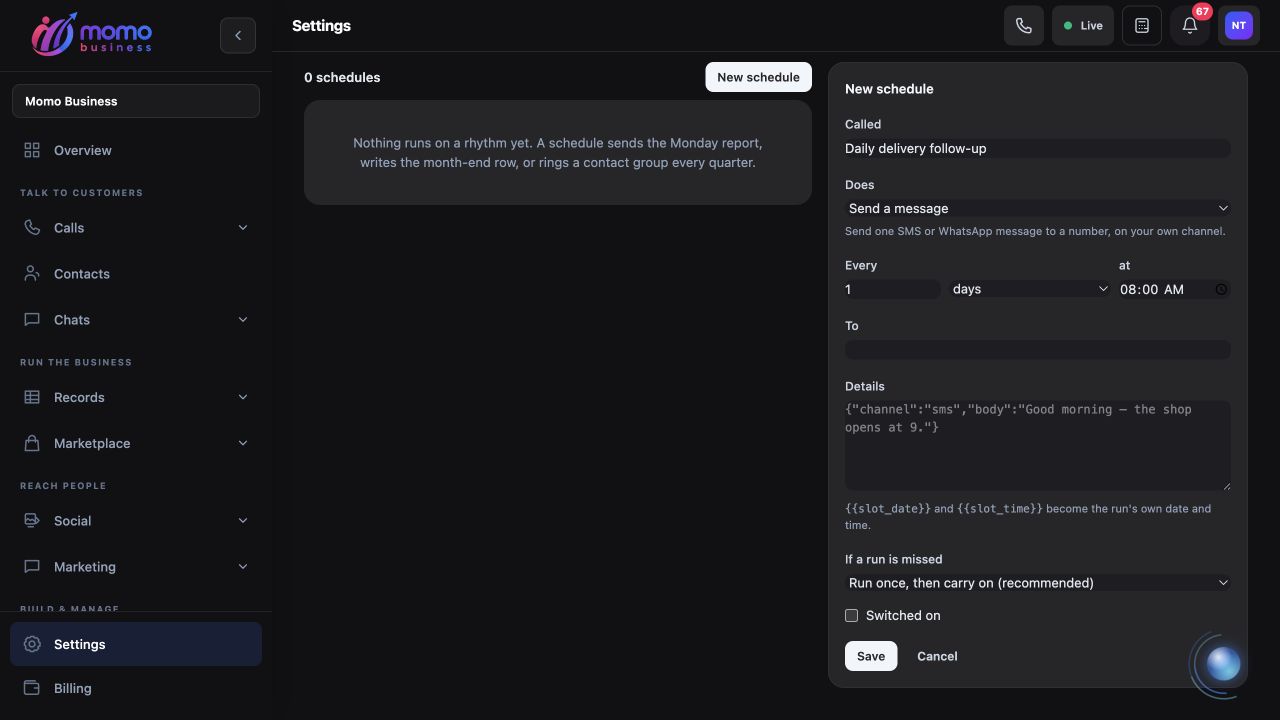
Prepare the new schedule with Switched on unchecked, then review its target and details before saving or running it.
- Before selecting Run now, verify that today's sample key is absent. If an existing row has that key, inspect it instead of trying again. Run the practice schedule once, read the result, then return to Data and confirm one row with the expected date and team. Inspect its history and the corresponding
record.createdevent.
Suppose the run fails after the team adds a required field named location. The corrective sequence is: read the field error, edit Details to include the actual location, save, check that no row was created, and run once again. The missing field was the cause; repeatedly pressing Run now without changing the payload would not fix it.
The unique key also means a second run on the same date should be refused rather than creating a duplicate. That is a deliberate rule for this example, not an automatic duplicate guarantee for every schedule.
Decide what a retry should mean
Run now performs the schedule's current action using the current time. It does not replay the original historical slot, and it leaves the next scheduled time in place. A manual run close to the scheduled time therefore needs special care: the scheduled action may still follow.
For messages or calls, verify the recipient and existing delivery result first. A successful schedule result can mean the message or call was queued. For webhooks, check receiver records against the original event identifier; temporary failures can already be under automatic retry. An HTTP timeout does not prove the receiver did nothing.
Finally, review the missed-run policy. Run once, then carry on suits a late checklist or refreshed report. Skip what was missed suits a reminder that has lost its purpose. Catch up on everything missed can produce multiple actions and is bounded by the system; use it only when each occurrence is needed. Restore the intended enabled state, check the next run, and record the corrected cause so the next operator can distinguish a new incident from the same one.