
Messaging campaigns send a prepared message to a contact group through an available SMS or WhatsApp identity. The most useful first campaign has a narrow audience, one clear purpose and a message you have checked with a small test group.
A repair business, for example, can notify customers whose orders are ready for collection. Prepare the audience before opening the campaign form so unrelated customers are not included.
Check the audience and sender first
Your role needs campaign management access, and you need an active sending identity available to your user. SMS may use an approved sender ID, a suitable number or a short code. WhatsApp campaigns require an approved template belonging to the selected number's WhatsApp account.
Review the contacts and respect their communication preferences. Unchecking a contact's subscription box does not currently exclude that contact automatically from messaging campaigns. Remove opted-out recipients from the target group or use the applicable blocking controls before sending. See the Contacts guide for preparing groups and custom fields.
Create a campaign carefully
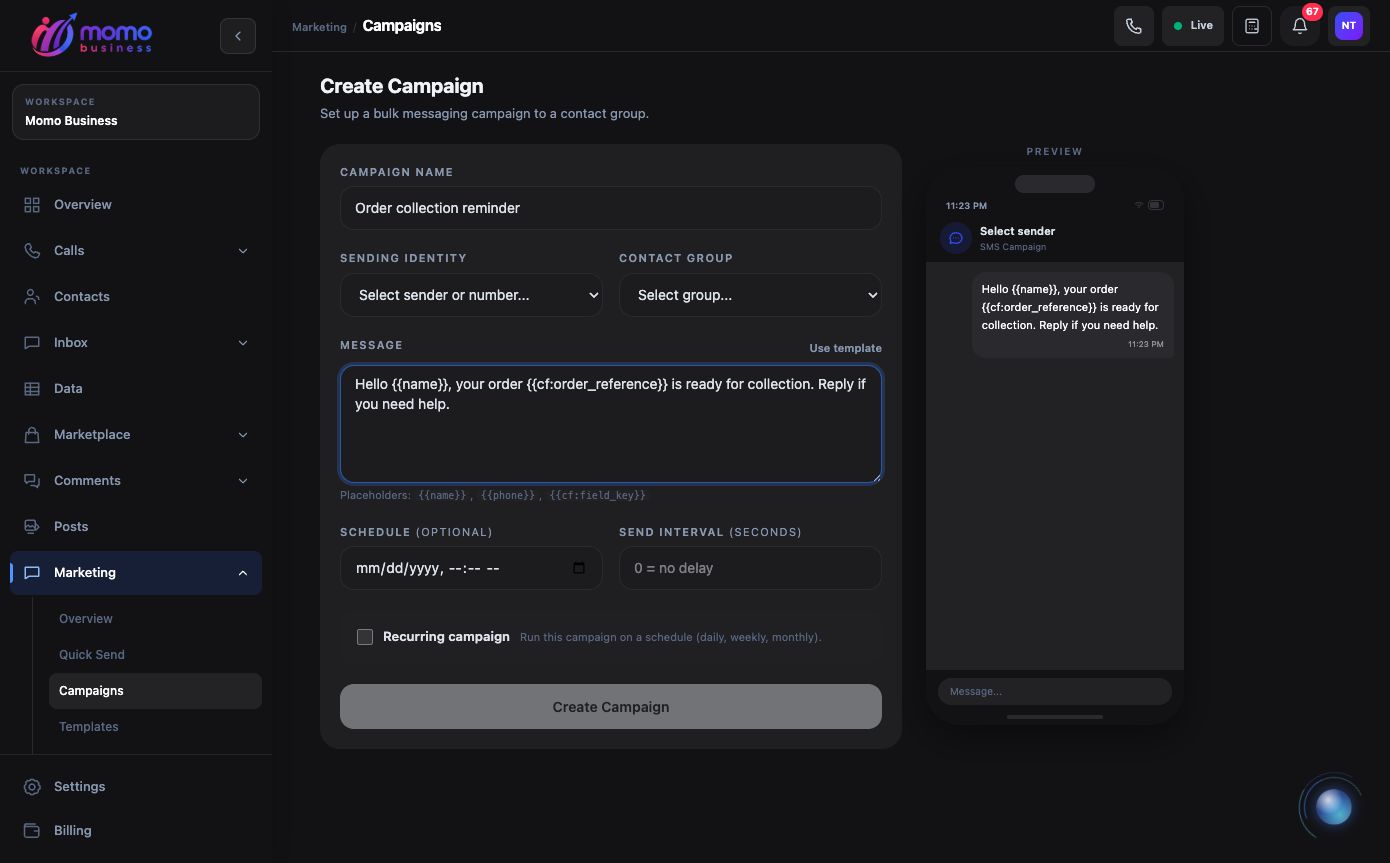
The live campaign form with an unsaved example message. No sender or audience is selected, and no campaign was submitted. View full-size screenshot.
- Open Marketing → Campaigns at Campaigns, then open the campaign creation form. Give the campaign a name that explains its audience and purpose.
- Choose Sending identity and Contact Group. Check the actual sender or number, not just the campaign name. Confirm that the group contains only the intended recipients.
- Prepare Message. For WhatsApp, select an eligible approved template. For SMS, write the message or choose a suitable template. Supported substitutions include
{{name}},{{phone_number}}and custom fields such as{{cf:order_reference}}. - Check the preview and sample contact values. Missing personalization values can produce blank text. A message such as “Hello {{name}}, order {{cf:order_reference}} is ready for collection” needs both fields populated.
- Set Schedule if the campaign should begin later, and Send Interval if you want spacing between messages. For a recurring campaign, check the frequency, time, timezone and stopping conditions carefully.
- Review any displayed estimated cost and your available wallet balance, then select Create Campaign only when ready. Without a future schedule, creation starts processing; this is not a save-only draft step.
Use a small group of your own test contacts before submitting the full audience. Verify both the received message and its result in the workspace.
Monitor results and handle interruptions
Open the campaign's details to review progress and individual message results. Processing, sent, delivered and read describe different stages; a completed dispatch does not establish that every recipient received or read the message.
Use the available pause, resume or cancel controls as needed. These controls cannot retract messages already delivered. Restart starts fresh sends and can contact recipients again, so do not use it as a shortcut for retrying only failed messages.
- No sending identity: check its approval, connection, capability and your access.
- WhatsApp rejects the template: confirm approval and that it belongs to the selected account.
- The campaign pauses: inspect its status and wallet balance; insufficient funds can pause processing.
- Delivery is slower than expected: send intervals and provider limits both affect timing.
- Personalization is blank: correct the contact values and exact field keys before another send.
Campaigns are for the supported sending identities shown in the form. TikTok messaging is reply-only in this workflow and does not support campaign broadcasts. Handle customer responses through the Inbox.
Review the outcome against the campaign's purpose
For an order-collection notice, success includes the correct customer receiving the correct reference. It is not enough for the campaign counter to reach the end. Review a few individual messages and handle replies in the business inbox so questions about collection do not remain unanswered.
Compare failures by sender, destination and error. If many messages fail with the same connection or approval problem, correct that shared cause before retrying recipients. If only one number fails, inspect that contact and its result instead of restarting the whole campaign.
Keep a short record of the audience rule, template or message used, sending time and any corrective action. This helps the next operator avoid repeating the same issue on a recurring send.
A delivery receipt describes a transport outcome, not a sale or customer decision. Track the business result in the relevant order, ticket or Data record when needed. For a step-by-step investigation, use SMS delivery and campaign troubleshooting.