AI Agents & Visual IVR: Automate Calls with Intelligence
Momo Pulse lets you deploy AI voice agents that handle calls autonomously and build visual IVR flows that route callers through menus, decisions, and actions — all without writing code.
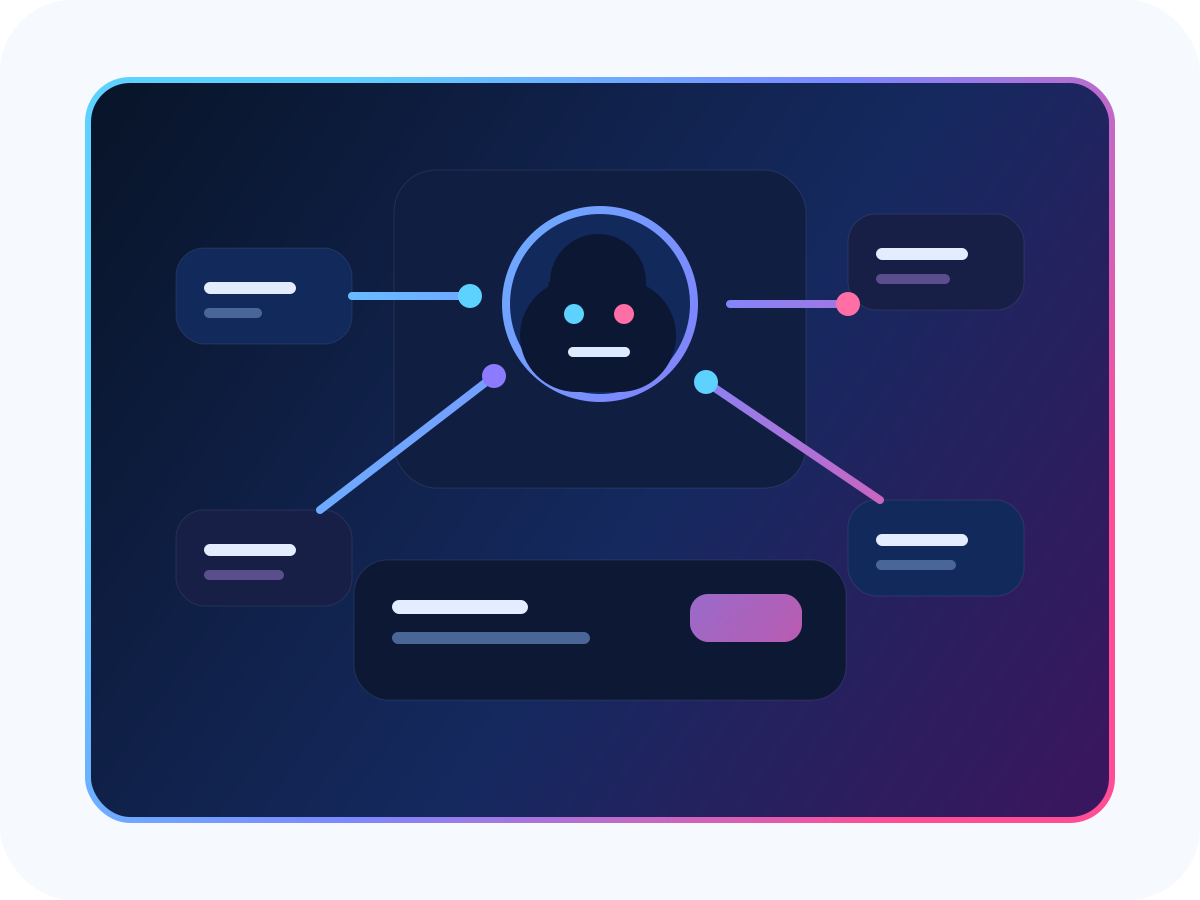
AI Agents
Two Modes
- Realtime mode — the AI speaks directly to the caller using streaming voice synthesis. Best for conversational support and sales.
- Pipeline mode — speech-to-text → AI processing → text-to-speech. Best for structured workflows where accuracy matters more than latency.
Creating an AI Agent
- Go to Agents > Manage > AI tab and click "Add AI Agent"
- Configure the agent with:
- Name and mode (realtime or pipeline)
- Voice — select from available AI voices
- Model — choose the AI model (GPT-4, Claude, etc.)
- Instructions — the system prompt that defines the agent's behavior and personality
- Add tools — HTTP endpoints and prompt-driven integrations that let the AI look up orders, check balances, or create tickets
- Click Apply Changes to sync your configuration to the live system
Assigning AI Agents to Numbers
From Numbers > Manage > [your number]:
- Enable "AI agent enabled"
- Select which agent configuration handles calls on this number
- The AI takes first-pass on every inbound call to that number
Tool Orchestration
AI agents can call external APIs during conversations:
- HTTP tools — call your CRM, order system, or any REST API
- Prompt tools — use AI reasoning to extract structured data from conversation
- Each tool has a schema-based parameter definition so the AI knows what to pass
Visual IVR
What is IVR?
Interactive Voice Response routes callers through a decision tree using voice prompts and keypad input. Momo Pulse provides a visual drag-and-drop IVR builder.
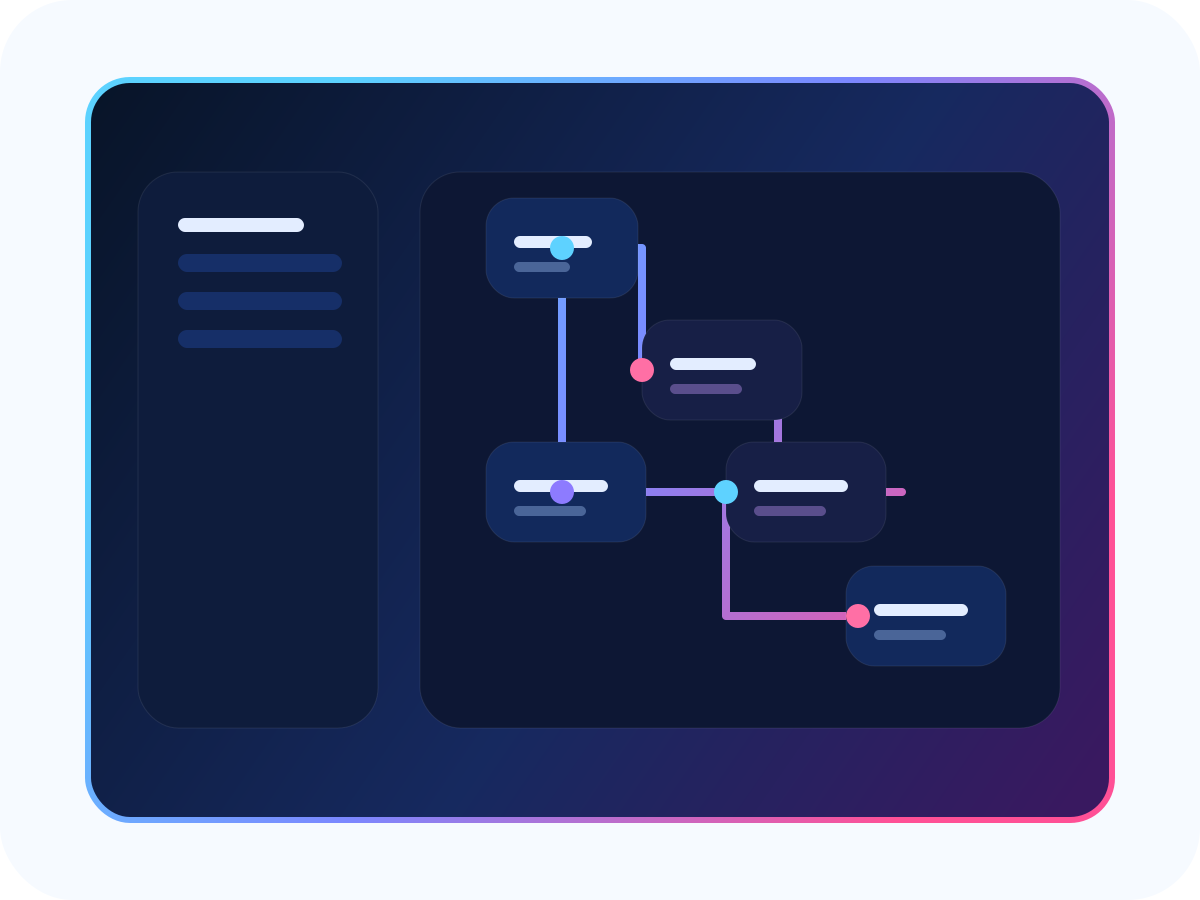
Building a Flow
- Go to Agents > IVR Workspace and click "Create Flow"
- Add nodes to your flow:
- Menu nodes — play a prompt and capture keypad input (e.g., "Press 1 for sales, 2 for support")
- Decision nodes — branch based on conditions (time of day, caller data, API response)
- Message nodes — play an announcement
- Dispatch nodes — route to an agent, ring group, or external number
- Goto nodes — jump to another point in the flow
- Connect nodes by dragging edges between them
- Click Validate to check for dead ends or missing branches
- Click Simulate to test the flow with sample inputs before going live
- Click Publish to make the flow active
Assets & HTTP Profiles
- Voice assets — upload audio files (greetings, hold music, announcements) from the IVR Assets page
- HTTP profiles — configure external API endpoints that IVR decision nodes can call for dynamic routing (e.g., check CRM before routing)
Assigning IVR to Numbers
From the IVR workspace, use the Assignments tab to map flows to specific phone numbers. Each number can have one active IVR flow.
AI + IVR Together
The most powerful setup combines both:
- IVR handles initial routing — "Press 1 for sales, 2 for support, 3 to speak with AI"
- AI agent handles the conversation — takes details, answers questions, uses tools
- Human fallback — if the AI can't resolve, it transfers to a live agent with full context
This layered approach ensures callers always reach help while minimizing agent workload.