Voice Calls: Inbound, Outbound, Recording & Live Studio
Momo Pulse gives your team a unified control surface for every voice call — inbound and outbound — with browser-based answering, forwarding, recording, transcription, and real-time monitoring built in.
What You Can Do
Place and Receive Calls from the Browser
The Call Studio is your real-time call operations center. Open it from the dashboard or the Calls menu.
- Place outbound calls by entering a destination number, selecting your from-number, transport (SIP or WhatsApp), and optional AI agent profile
- Accept inbound calls directly in your browser — no softphone or hardware phone required
- Forward active calls to another number or team member mid-conversation
- Assign calls to specific agents for accountability and routing
- End calls with one click
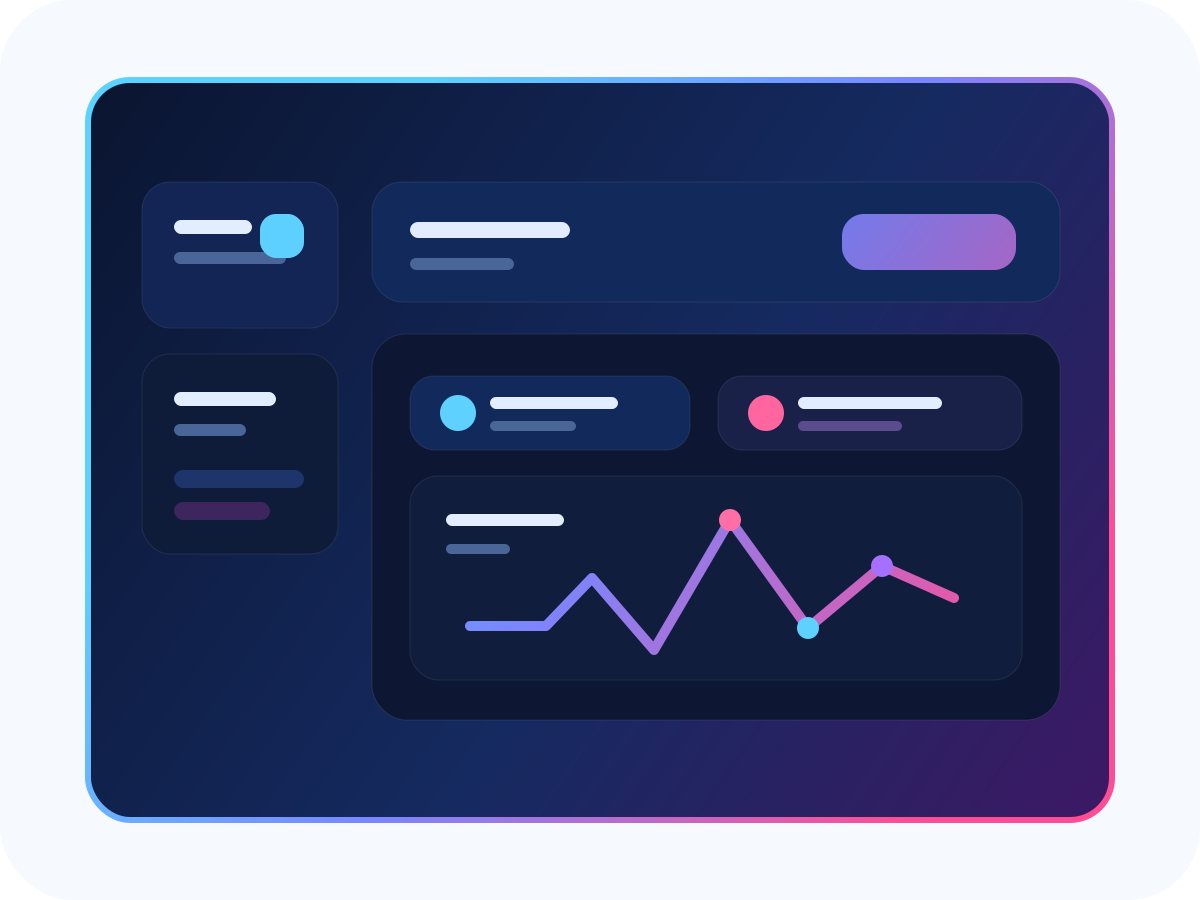
The Call Studio shows all active calls in real time with tabs for Overview, Incoming, Outbound, and In Progress. Each call card shows caller info, duration, assignment status, and quick actions.
Call History & Detail
Every call is logged with full detail:
- Direction (inbound/outbound), duration, status (ended, missed, failed, rejected)
- Event timeline — every routing decision, participant join/leave, and state change
- Recordings — playback with waveform visualization, download, and external file links
- Transcripts — speaker-labeled, timestamped text with markdown export
- IVR steps — visual trace of which IVR nodes were executed during the call
Use filters to search by number, status, direction, transport, recording state, date range, and duration.
Recording & Transcription
Configure recording at multiple levels:
- Per-number defaults — set inbound and outbound recording independently from Numbers > Manage
- Per-call override — choose "Always", "Never", or "Tenant Default" when placing a call from the Studio
- Transcription — enable speech-to-text per number with configurable STT model selection
Recordings are stored securely and accessible only to users with the calls.recordings.view permission.
Live Listening
Supervisors with the calls.listen-live permission can join an active call in listen-only mode to monitor quality without the caller knowing. Connect and disconnect instantly from the call detail page.
How Routing Works
- A call comes in to one of your purchased phone numbers
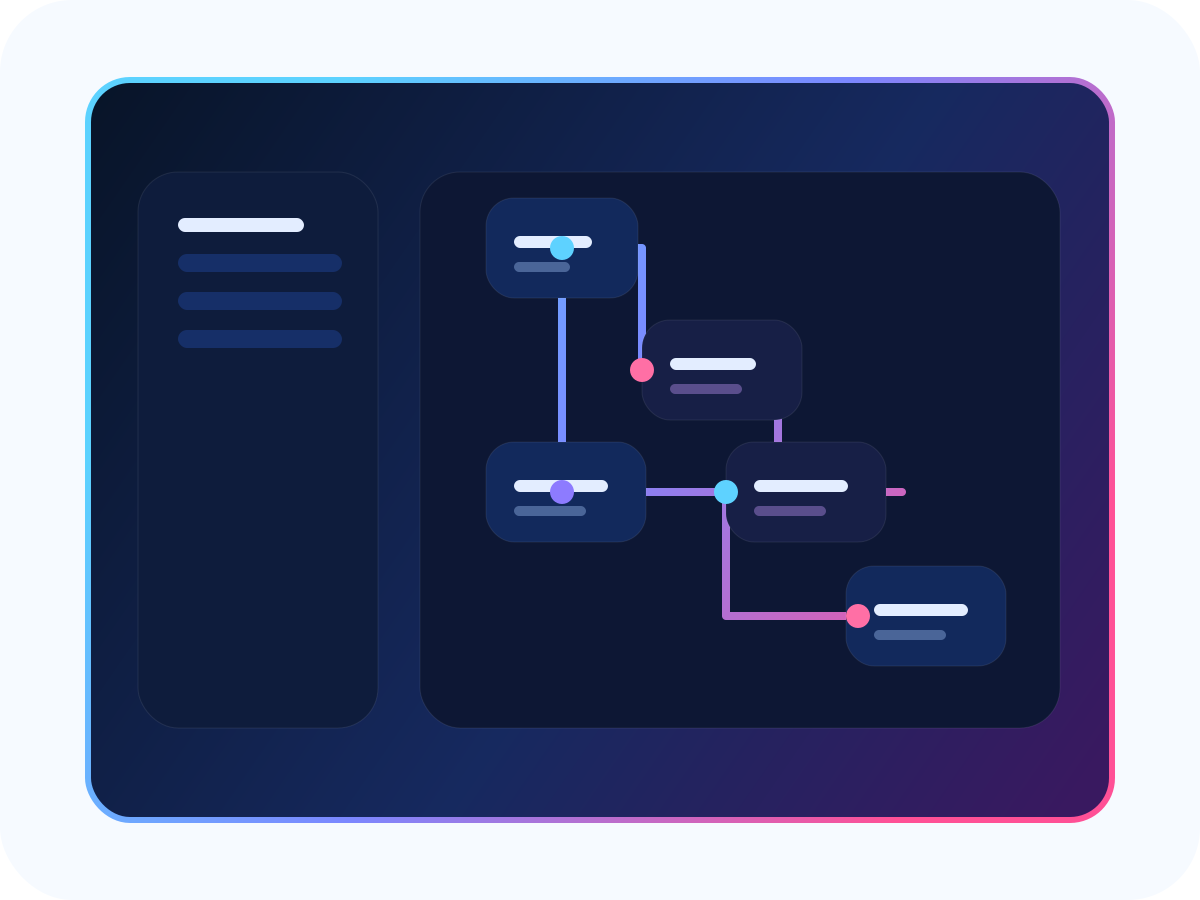
- If an IVR flow is assigned, the caller navigates menus, decisions, and dispatch nodes
- If a ring group is assigned, the call rings team members simultaneously or sequentially
- If an AI agent is assigned, the agent handles the call with configured tools and voice
- Operators can forward or assign calls at any point during the conversation
Key Pages
| Page | What it does |
|---|---|
Call Studio (/app/calls/studio) |
Real-time call board with dialer, active calls, and quick actions |
Call History (/app/calls/history) |
Searchable, filterable log of all calls with detail drill-down |
Call Detail (/app/calls/{id}) |
Full call timeline with recordings, transcripts, events, and IVR trace |
Business Analytics (/app/calls/business-analytics) |
AI-powered sentiment analysis, complaint trends, and service quality metrics |
Tips
- Always test your routing before going live — use the IVR simulator and place test calls between team members
- Set up ring groups early so calls are never unanswered when specific agents are offline
- Enable recording on high-value queues and review transcripts weekly for quality coaching
- Use Business Analytics to track customer satisfaction trends and identify complaint patterns automatically